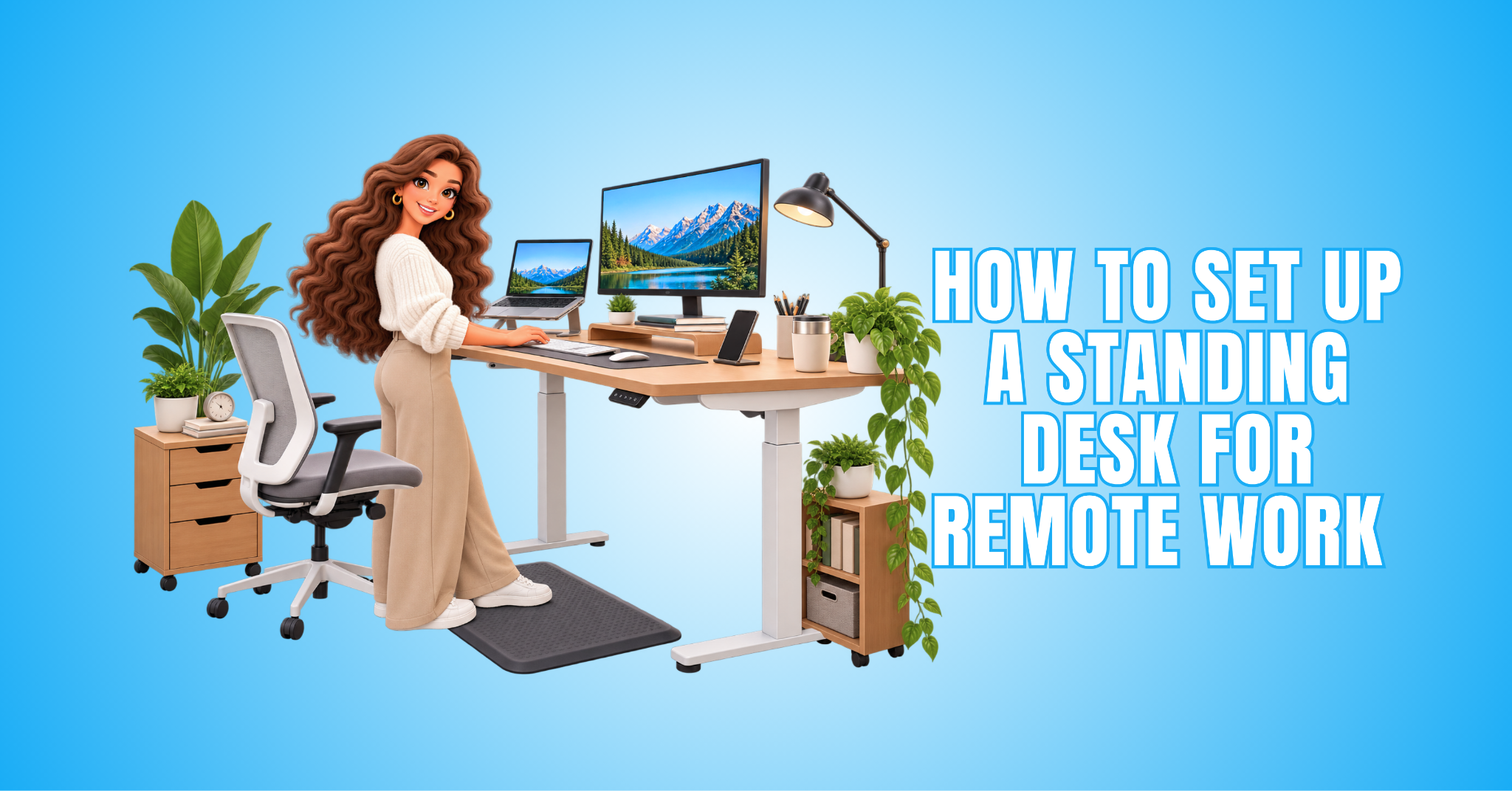
How To Set Up A Standing Desk For Remote Work In 11 Steps
Learning how to set up a standing desk can make remote work more comfortable. A thoughtful setup can also make your home office more organized and adaptable.
Standing desk comfort involves more than raising your laptop or desktop. Screen height, keyboard position, lighting, footwear, and daily habits all matter.
Your workspace should support natural movement throughout the day. Essential tools should also remain within easy reach as you move between positions.
A well-planned setup makes switching between sitting and standing easier. It can also help your workspace feel practical and comfortable throughout the workday.
Benefits Of A Standing Desk For Remote Work
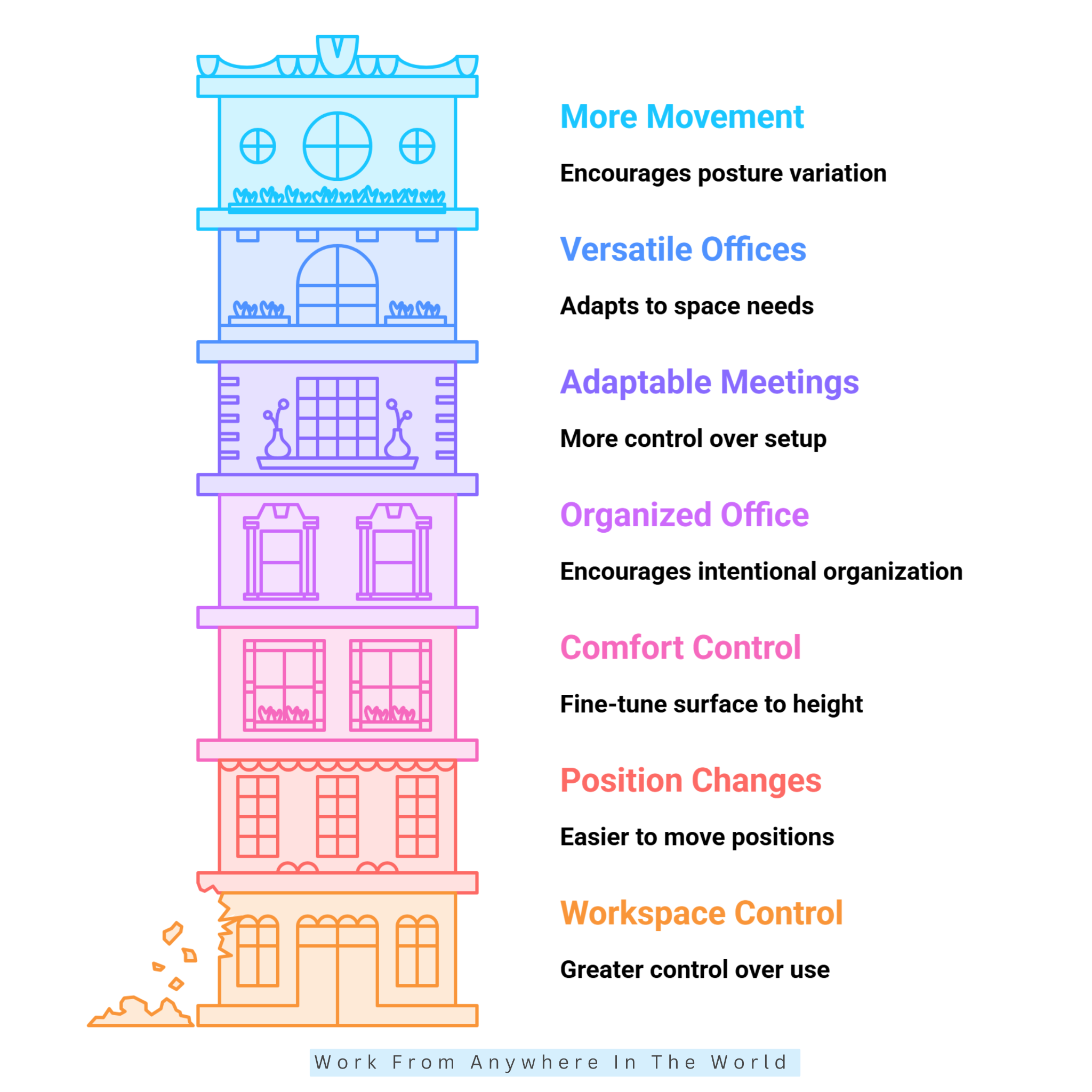
A standing desk can add more movement and flexibility to your remote workday. It also gives you more control over how you arrange your workspace.
The benefits go beyond simply standing while you work. A well-planned setup can make it easier to change positions, stay organized, and adapt your workspace to different tasks.
1. Creates A More Flexible Workday
A standing desk gives you more flexibility in how you work throughout the day. Instead of staying in one position, you can adjust the desk to suit different tasks.
Writing, reading, meetings, and administrative work may each feel more comfortable at different heights. This flexibility can be especially useful when one desk serves several purposes.
An adjustable workstation can adapt as your activities change. It makes moving between sitting and standing a natural part of your remote workday.
2. Makes Position Changes More Convenient
An adjustable desk makes it easier to change your working position throughout the day. You can move between sitting and standing without rearranging your monitor or keyboard.
This can be especially convenient during remote meetings, phone calls, or transitions between different tasks. The desk can simply move with you as your work changes.
Programmable height settings can make these adjustments even easier. You can save your preferred sitting and standing heights, making position changes quick and consistent.
Regular adjustments can then become a natural part of your workday. This makes alternating between sitting and standing more practical without disrupting your workflow.
3. More Control Over Workspace Comfort
A fixed desk height may not suit everyone or every task. An adjustable standing desk lets you fine-tune the surface to match your equipment and working preferences.
Your preferred height may change when typing, reading documents, using a laptop, or working with multiple screens. Adjusting the desk makes it easier to accommodate these different activities.
This flexibility can also be useful when more than one person shares the same workspace. Each person can adjust the desk instead of using one permanent setup.
4. Supports A More Organized Home Office
A standing desk can encourage a more thoughtful approach to workspace organization. Because the desktop moves, you need to arrange frequently used equipment carefully and keep it within easy reach.
Monitor arms, cable trays, laptop stands, and compact accessories can help free up valuable desktop space. They can also keep equipment organized as the desk moves between positions.
This can be particularly useful in bedrooms, apartments, or small home offices where space is limited. A well-planned workstation keeps essential equipment accessible while leaving enough room to work comfortably.
5. Makes Video Meeting Setup More Adaptable
Video meetings involve more than a computer and webcam. Camera height, lighting, background, and screen position all affect how your home-office setup appears on screen.
A height-adjustable desk gives you more control over your camera and monitor placement. You can position both appropriately for sitting or standing meetings.
An external webcam and adjustable lighting can also help you maintain a consistent video setup. You won’t need to rearrange your workspace each time you change positions.
For remote professionals who spend a lot of time in virtual meetings, this flexibility can make video calls more convenient while keeping the workspace comfortable and organized.
6. Makes Small Home Offices More Versatile
A standing desk can be particularly useful when one room serves several purposes. In a compact apartment, bedroom office, or multipurpose room, an adjustable workstation can adapt to different activities.
You can lower the desk for seated computer work and raise it for standing tasks. Keeping the surrounding area uncluttered also makes it easier to use the room for other purposes after work.
Choosing the right desktop size and compact accessories can make the setup even more practical. Instead of dedicating an entire room to an office, you can create a workspace that fits the space you already have.
7. Encourages More Movement During The Workday
An adjustable desk can make movement easier to include in your remote-work routine. Raising the desk for a meeting or changing positions between tasks creates natural opportunities to move throughout the day.
You can combine these transitions with short walks, water breaks, or other everyday activities. The goal is not to stand continuously, but to make regular movement and position changes more practical.
A flexible workstation can make your workday feel less static. Understanding the advantages and disadvantages of standing desks can also help you decide how standing fits into your daily routine.
Setting Up Your Standing Desk
A comfortable standing desk starts with a setup that fits you and your work style. Small adjustments to your desk, monitor, keyboard, and accessories can make a noticeable difference.
The following 11 steps will help you arrange your workstation for both sitting and standing. You can then fine-tune the setup as you use it throughout your workday.
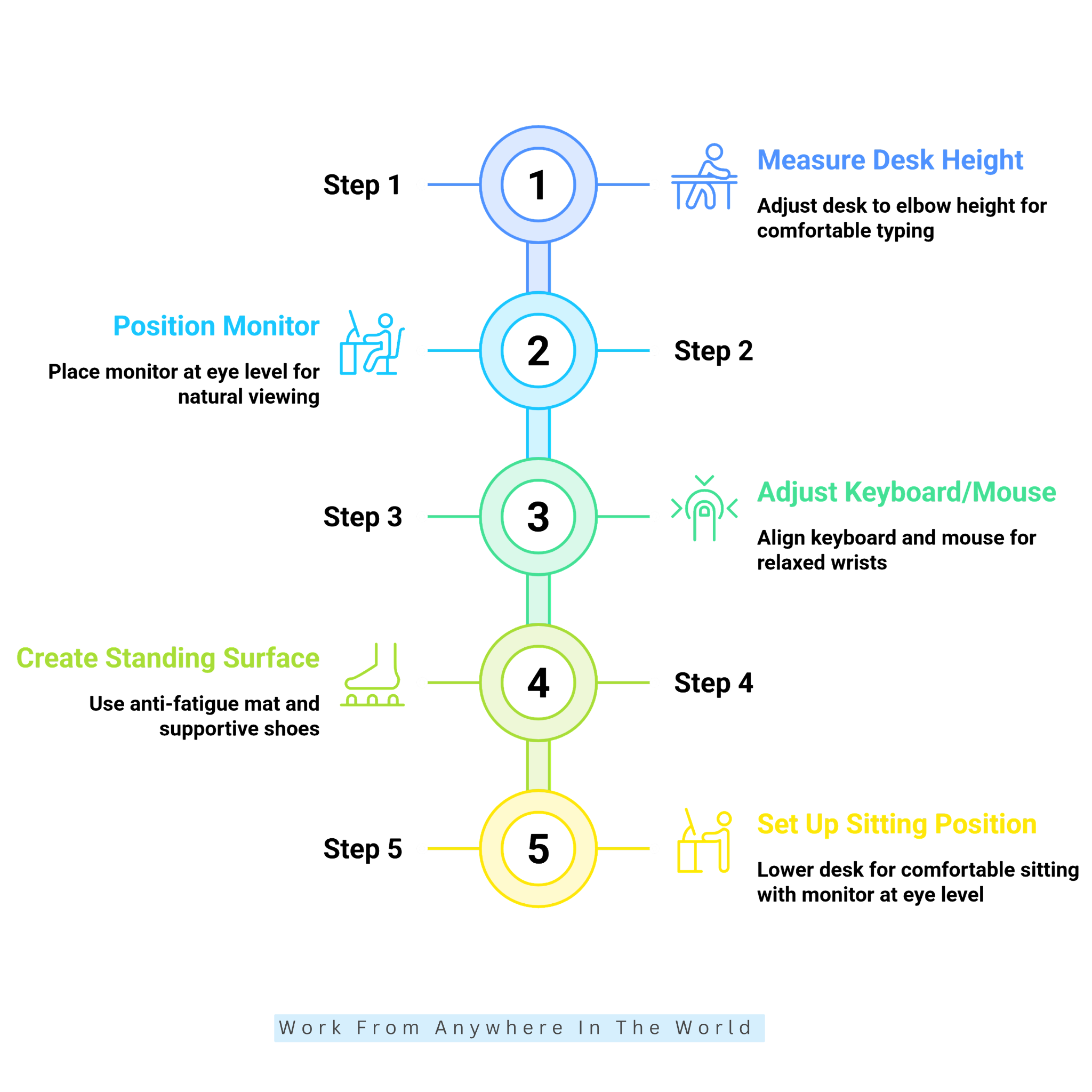
1. Measure Your Desk Height
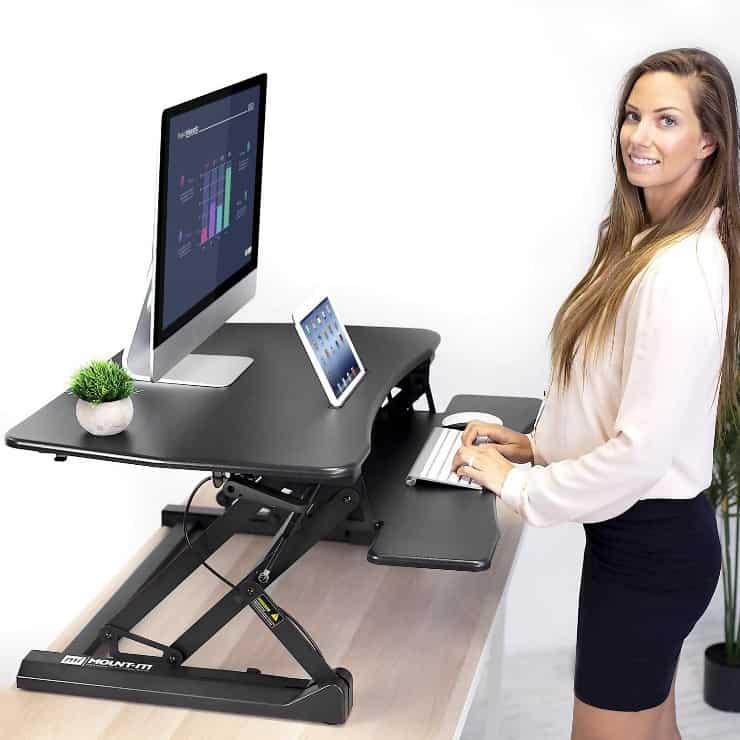
The right desk height creates the foundation for a comfortable standing workstation. Stand naturally with your feet comfortably positioned and your shoulders relaxed.
Bend your elbows so your forearms reach the keyboard without lifting your shoulders or sharply bending your wrists. Adjust the desk until typing feels comfortable and natural.
Your ideal height will depend on your body proportions, footwear, and keyboard thickness. Treat general height recommendations as a starting point, not a fixed rule.
Once you find a comfortable position, save it as a preset if your desk offers programmable settings. This makes it easier to return to the same standing height throughout the day.
2. Position Your Monitor
Your monitor should sit where you can view the screen without repeatedly tilting your head up or lowering your chin. Position the display directly in front of your main working area.
Adjust the height until the screen feels natural to view. Following basic office ergonomics guidelines can help you find a comfortable monitor height and viewing distance.
A monitor arm can make adjustments easier because it lets you change the height, distance, and tilt independently. This flexibility is particularly useful when switching between sitting and standing.
When using a laptop, place it on a stable stand and connect an external keyboard and mouse. This separates the screen from your hands and gives you greater control over the setup.
A well-positioned monitor can make screen-based work more comfortable in both sitting and standing positions. Take a moment to check the screen position whenever you adjust your desk height.
3. Adjust Your Keyboard And Mouse
Once your monitor is positioned correctly, adjust your keyboard and mouse rather than leaving them wherever they happen to fit. Keep both close enough that your elbows remain near your body while you work.
Keep your shoulders relaxed, with your wrists naturally aligned with your forearms. A keyboard that sits too high can cause you to lift your shoulders or bend your wrists.
Placing the keyboard or mouse too far away can also lead to unnecessary reaching. A compact keyboard can create more space, while an ergonomic mouse may provide a more comfortable grip.
Aim for a position where typing and navigation feel natural and require minimal unnecessary movement. Check placement again when switching between sitting and standing.
4. Create A Comfortable Standing Surface
The floor beneath your standing desk deserves attention too. A hard surface can become uncomfortable during long periods of standing, especially if you stay in one position.
An anti-fatigue mat can provide cushioning and make it easier to shift your stance while working. Choose one with enough space to move your feet comfortably without constantly stepping off the edge.
Footwear can also affect how comfortable standing feels. Supportive shoes may be more comfortable than thin slippers or footwear with very little support.
Change your foot position occasionally and move around when you can. Small movements can help your standing setup feel more flexible rather than rigid.
5. Set Up Your Sitting Position
A standing desk becomes more useful when you create a comfortable sitting position as well. Lower the desk until your chair, keyboard, mouse, and monitor work together comfortably.
When using an adjustable monitor arm, reposition the screen as needed for sitting. Rest your feet comfortably on the floor or on a suitable footrest.
Save your sitting height as a preset if your desk has memory controls. This makes switching between sitting and standing much easier during the workday.
Your chair should also provide a stable and comfortable working position. A well-planned workstation makes it easy to move between sitting and standing positions rather than limiting you to one or the other.
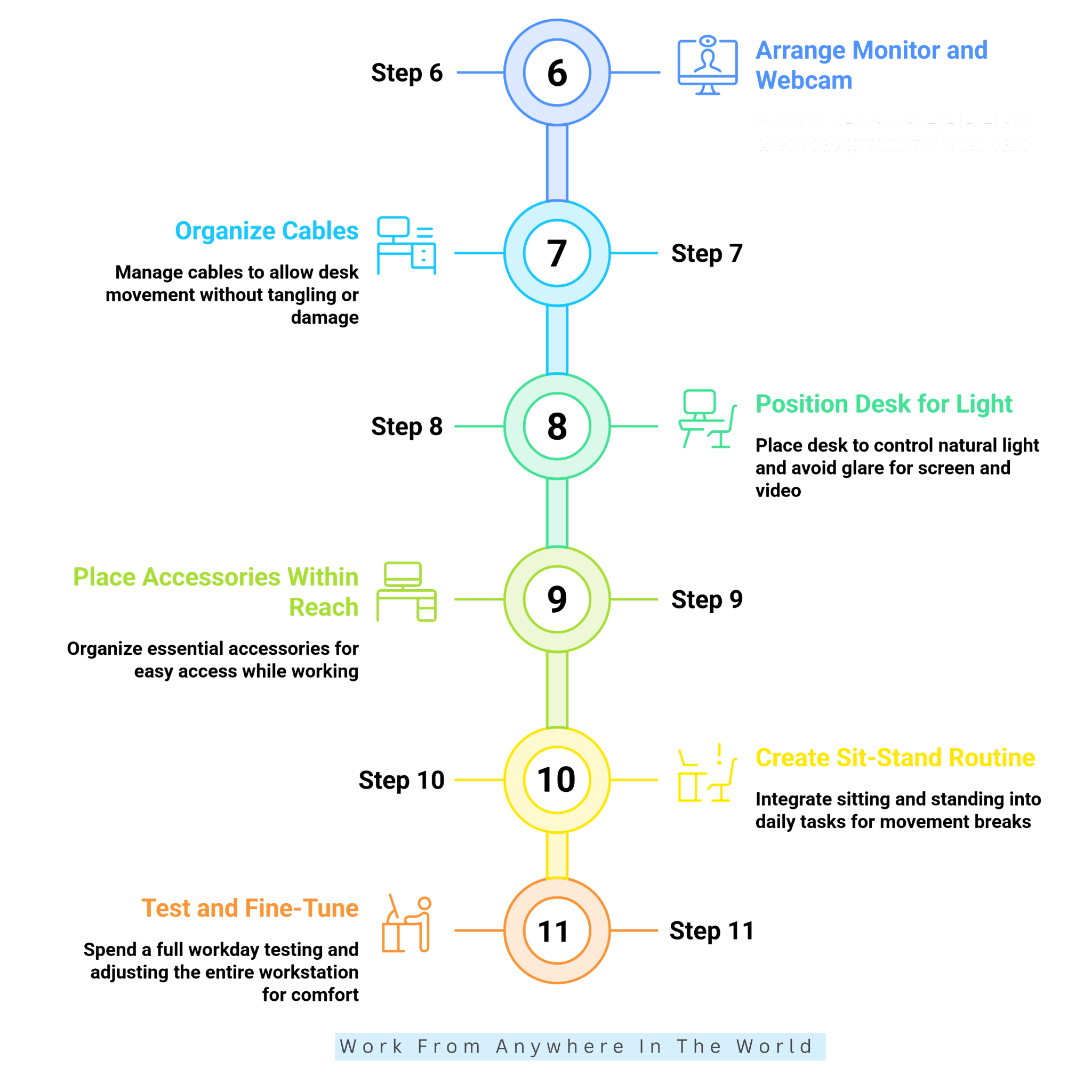
6. Arrange Your Monitor And Webcam
Remote work often involves video meetings, so your standing setup should also work well on camera. Position your webcam close to eye level to create a natural viewing angle.
When using a laptop, raising it on a stand can improve the camera position. An external webcam gives you even more flexibility when switching between sitting and standing.
Check your background from your normal standing height because raising the desk can change what appears behind you. A tidy, uncluttered background can also help you look more professional.
Lighting matters too. Position a window or light source so your face is clearly visible without creating strong glare on your screen. Adjusting your monitor position can also help reduce reflections while keeping the screen comfortable to view.
Test your camera before important meetings and make any adjustments while standing naturally. Once everything is positioned correctly, switching between work and video calls should require very little rearranging.
7. Organize Your Cables
Cable management matters most when your desk moves between sitting and standing. Start by identifying the cables connected to your computer, monitor, power strip, speakers, chargers, and other equipment.
Give each cable enough slack to accommodate the desk’s full range of motion without stretching or tangling. A cable tray beneath the desk can keep power connections organized, while reusable cable ties can group related wires.
Keep cables away from moving desk mechanisms and areas where they could catch on your chair or feet. This also helps keep the area beneath your desk easier to navigate.
Once everything is organized, test the desk at both its lowest and highest settings. Make sure every cable moves freely and remains securely connected.
A well-organized cable system helps protect your equipment while keeping the workspace uncluttered. It also makes future adjustments to your standing desk much easier.
8. Position Your Desk For Natural Light
Your standing desk location can affect screen visibility, video quality, and overall comfort. Before choosing a permanent position, observe how sunlight enters the room at different times of day.
Direct light behind your monitor can create reflections, while strong light behind you can make your face appear dark during video calls. Positioning the desk perpendicular to a window can often provide a better balance.
Curtains or blinds can help control changing brightness throughout the day. When natural light is limited, a few home office lighting adjustments can help you create a more comfortable workspace.
A well-positioned desk can reduce glare and make your workspace more comfortable. It can also prevent changing light conditions from becoming a daily distraction.
9. Keep Accessories Within Reach
A practical standing desk setup keeps your most important tools accessible without filling every inch of the surface. Start with the items you use regularly, such as your keyboard, mouse, notebook, phone, and headphones.
Place these essentials within comfortable reach while leaving enough open space for your hands and arms. A monitor arm can free up desk space, while a vertical document holder keeps frequently used papers visible.
Store less frequently used accessories in a nearby drawer, cabinet, or organizer. This keeps them accessible without cluttering your main working area.
Thoughtful placement reduces unnecessary reaching and makes switching between tasks easier. It also helps create a workspace that feels organized without becoming overly minimalist.
10. Create A Sit-Stand Routine
Once your physical setup is ready, connect it to the way you actually work. Use different tasks as natural opportunities to change positions rather than following a rigid schedule.
You might sit for detailed writing, stand during a video meeting, and change positions again for a phone conversation. Short movement breaks can also make natural transitions between tasks.
When your desk has programmable settings, save your preferred sitting and standing heights for easy access. This removes an extra step whenever you want to change positions.
Pay attention to how different tasks feel in each position and gradually develop a routine that suits your workday. The most practical sit-stand routine is one that remains flexible as your schedule changes.
11. Test And Fine-Tune Your Setup
Your first setup does not need to be perfect. Spend a full work session using the desk for the tasks you normally complete throughout the day.
Notice whether your monitor feels too high, your keyboard requires reaching, or your mouse feels awkward to use. Pay attention to your standing surface and sitting position as well.
Make one adjustment at a time so you can tell which changes improve the setup. Test the desk at both sitting and standing heights, especially when using monitor arms, mounted accessories, or cable-management systems.
Even small adjustments can make the workstation more comfortable and practical. Once everything feels right, save your preferred desk heights and keep the final arrangement simple enough to use every day.
Frequently Asked Questions
Q1: Is A Standing Desk Good For A Home Office?
A standing desk can be a practical addition to a home office because it lets you alternate between sitting and standing. It gives you more flexibility throughout your workday.
This can be especially useful for remote workers who spend many hours at a computer. You can adjust the workstation as your tasks and preferences change.
Q2: Where Should A Laptop Go On A Standing Desk?
Place your laptop on a stable stand that raises the screen to a comfortable viewing height. This gives you more control over the display’s position.
Connect an external keyboard and mouse so your hands can remain in a comfortable position. This setup also works well when moving between sitting and standing.
Q3: Should My Standing Desk Face A Window?
A standing desk can face a window if the natural light is comfortable and doesn’t create screen glare. The direction and strength of the sunlight will affect the best position.
Placing the desk perpendicular to a window can often provide a good balance. You can enjoy natural light while keeping your screen easier to see.
Q4: How Can I Make A Standing Desk More Comfortable?
Start by adjusting your desk height, monitor position, keyboard placement, and lighting. An anti-fatigue mat and supportive footwear can also improve comfort.
Allow yourself to change positions rather than standing continuously. Alternating between sitting, standing, and short movement breaks can make the setup more practical.
Q5: Can I Use A Standing Desk With Two Monitors?
Yes. Place your primary monitor directly in front of you and position the second screen beside it. Both should be easy to view without excessive head movement.
Monitor arms can make the screens easier to position and adjust. They also allow both monitors to move with the desk when you change its height.
Q6: What Accessories Are Useful For A Standing Desk?
Useful accessories include a monitor arm, laptop stand, external keyboard and mouse, anti-fatigue mat, cable tray, desk lamp, and webcam. Choose items that support the way you work.
You do not need every available accessory to create a practical setup. Focus on equipment that improves comfort, organization, or how you use your available space.
Q7: How Often Should I Switch Between Sitting And Standing?
No single sit-stand schedule works for everyone. Switch positions based on your tasks, preferences, and comfort level. Your routine may also change from one workday to the next.
Meetings, phone calls, task changes, and natural breaks can provide convenient opportunities to switch. The goal is to build movement naturally into your workday.
Conclusion
A well-planned standing desk can bring more flexibility to your remote workday. The right desk height, monitor placement, keyboard position, lighting, and standing surface all contribute to a comfortable setup.
Your workstation should make it easy to move between sitting and standing as your tasks change. Small adjustments can help the setup work naturally with your daily routine.
Once you know how to set up a standing desk, you can fine-tune it as your needs change. The result is a home office that feels comfortable, organized, and practical for everyday remote work.
I trust you enjoyed this article on How to Set Up A Standing Desk for Remote Work in 11 Steps. Please stay tuned for more insightful blogs on affiliate marketing, online business, and working from anywhere in the world.
Take care!
— JeannetteZ 🌍✨
💬 Your Opinion Is Important To Me
Do you have thoughts, ideas, or questions? I’d love to hear from you. Please leave your comments below or email me directly at Jeannette@WorkFromAnywhereInTheWorld.com.
📚 More Work From Anywhere Reads
🚀 Ready to Build a Business You Can Run from Home
Or from Anywhere in the World?
Imagine creating income on your terms — from home, a cozy café, or wherever life takes you.
With the right tools, training, and community support, it’s entirely possible.
Start your own online business for free — no credit card needed.
Disclosure
This post may contain affiliate links. As an Amazon Associate and participant in other affiliate programs, I earn from qualifying purchases at no extra cost to you. Please read my full affiliate disclosure.