
Canva Review: 10 Powerful Features, Pros & Cons
This Canva Review explores the features, benefits, and limitations of one of the most accessible online design platforms. Canva offers tools to create professional-looking visuals without requiring advanced graphic design skills.
From social media graphics and presentations to videos, documents, and marketing materials, Canva brings together a wide range of creative tools. Its templates and visual editor make design projects more approachable for beginners and experienced creators alike.
The platform offers more than basic graphic design. Features such as AI-powered tools, photo editing, brand management, and collaboration support a wide range of personal, educational, and business projects.
However, not every feature is available on every plan, and Canva does have limitations. Understanding its capabilities and restrictions is important when deciding whether it suits your creative needs.
In this review, we’ll examine Canva’s major features, benefits, drawbacks, usability, and available plans. You’ll learn who the platform suits best and whether it deserves a place in your creative workflow.
What Is Canva?
Canva is an online graphic design platform that makes creating visual content accessible without advanced design skills. It combines customizable templates, drag-and-drop editing, media libraries, and AI-powered creative tools in one workspace.
The platform supports a wide variety of projects, including social media graphics, presentations, posters, flyers, logos, videos, documents, invitations, and marketing materials. Users can create designs from scratch or customize existing templates.
One of Canva’s greatest strengths is its approachable interface. Users can select a professionally designed template, replace images, adjust colours and fonts, and produce polished visuals without learning complex design software.
Canva suits students, educators, bloggers, content creators, marketers, small businesses, and collaborative teams. Its combination of creative tools and ready-made resources makes it practical for both occasional projects and regular content production.
Key Features Of Canva
Canva offers a wide range of creative tools for designing, editing, and sharing visual content. Its features support everything from simple social media graphics to presentations, videos, documents, and branded marketing materials.
The platform combines ready-made templates with flexible editing tools, allowing users to customize designs to suit their projects. Beginners can start with an existing layout, while experienced creators have greater freedom to develop original designs.
AI-powered features expand Canva’s capabilities through image generation, writing assistance, and other creative tools. However, availability and usage limits vary by subscription plan.
Canva provides features for individuals, bloggers, educators, small businesses, and collaborative teams. The following ten features highlight its main capabilities and how they support different creative projects.
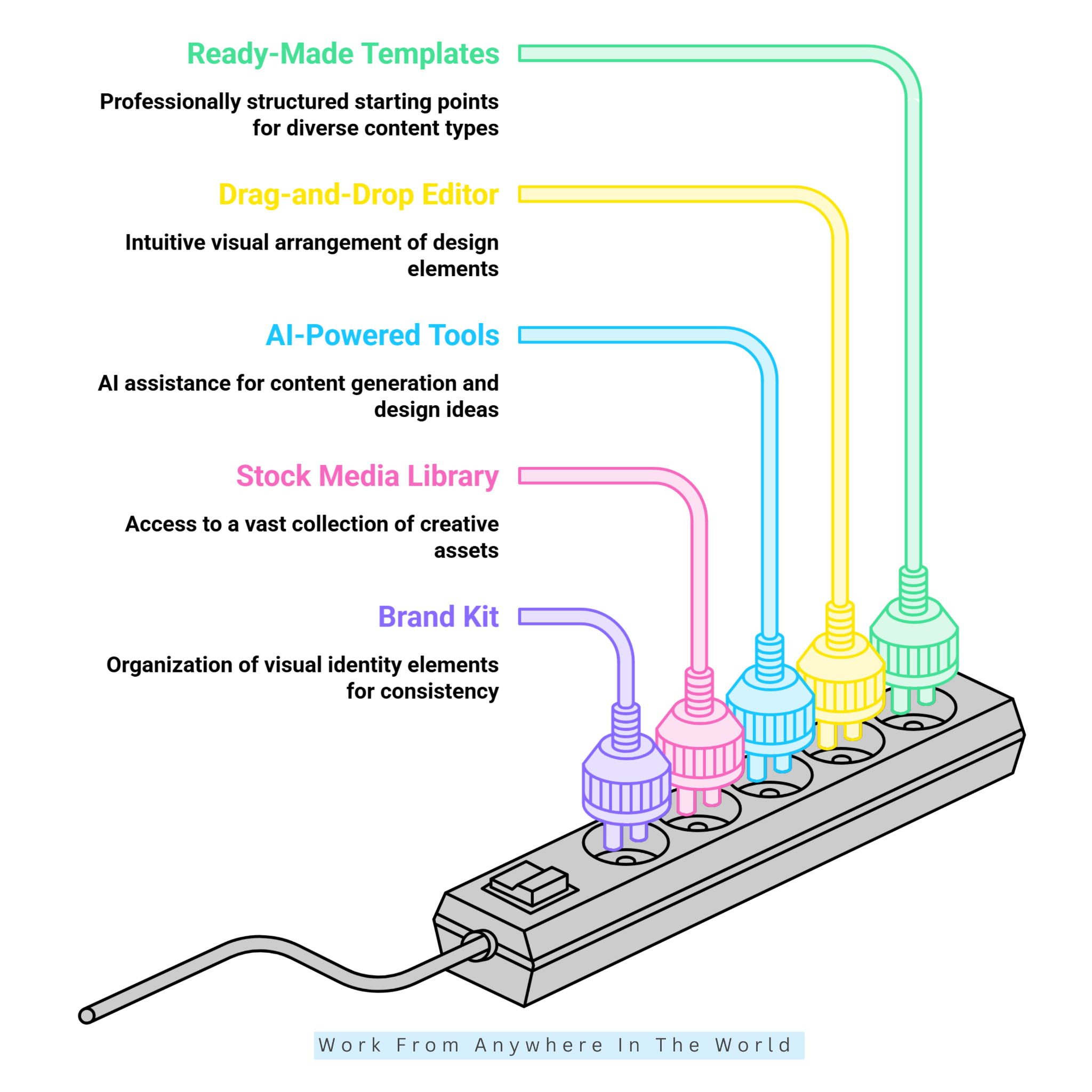
1. Ready-Made Templates
Canva offers an extensive collection of ready-made templates for different creative projects. These include social media graphics, presentations, posters, flyers, résumés, invitations, videos, and marketing materials.
Each template provides a structured starting point that users can personalize. Users can adjust text, images, colours, fonts, backgrounds, and other design elements to suit individual preferences or branding requirements.
Templates work alongside Canva’s drag-and-drop editor, media library, and branding tools. This makes it easier to maintain a consistent appearance across different projects without creating every design from scratch.
For beginners, templates provide inspiration and guidance without requiring advanced graphic design skills. More experienced users can modify layouts, rearrange elements, and create distinctive designs instead of relying on the original template.
2. Drag-And-Drop Editor
Canva’s drag-and-drop editor allows users to arrange and customize design elements directly on the canvas. Users can move, resize, or reposition text, images, shapes, icons, and videos without complicated editing commands.
The editor works alongside templates, grids, frames, alignment tools, and Canva’s media library. These features make it easier to organize content, maintain consistent spacing, and create visually balanced layouts.
For example, you can select a presentation template, replace the original image, change the headline, and adjust the colours. You can then reposition individual elements within the same workspace to create a more personalized design.
This visual approach is especially useful for beginners unfamiliar with professional graphic design software. More experienced creators can use the same tools to develop customized layouts while maintaining control over individual design elements.
3. AI-Powered Design Tools
Canva offers AI-powered tools that support different stages of the creative process. Depending on the feature and subscription plan, these tools help generate text, create images, edit photographs, and develop visual concepts.
Canva’s AI features work alongside its templates, design editor, and media library. This combination allows users to explore creative ideas without switching between several applications.
For example, you might begin with a simple description and use AI to generate an image or suggest a design direction. You can then adjust the colours, typography, layout, and other elements to suit your project.
These tools are particularly useful for brainstorming, content creation, and experimenting with different visual approaches. However, AI-generated results still benefit from careful review and personal adjustments.
4. Stock Media Library
Canva provides a large collection of creative assets, including photographs, illustrations, icons, videos, graphics, and audio. Users can search the library directly from the design editor and add suitable elements to their projects.
The stock media library works alongside Canva’s templates, frames, background tools, and drag-and-drop editor. These features make it easier to combine different visual elements within a single design.
For example, a marketer creating a social media post can choose a template and search for a relevant photograph. They can then insert the image, adjust its position, and customize the surrounding text and graphics.
Having these resources in one workspace reduces the need to visit multiple stock media websites. However, some assets require a paid subscription, and users should check the applicable licensing terms before using them commercially.
5. Brand Kit
Canva’s Brand Kit helps businesses organize their visual identity in one convenient location. It stores important branding elements, including logos, brand colours, and fonts, for easy access during the design process.
Instead of searching for these assets whenever they create something new, users can access their saved branding elements directly. This makes it easier to maintain a consistent appearance across different projects.
For example, a business can choose a presentation or social media template and apply its established brand colours. It can then add its logo and preferred fonts to create a recognizable visual style.
Brand Kit is particularly useful for businesses, content creators, and marketing teams that regularly produce visual materials. It supports consistent branding across presentations, social media graphics, promotional materials, and business documents.
6. Presentation Maker
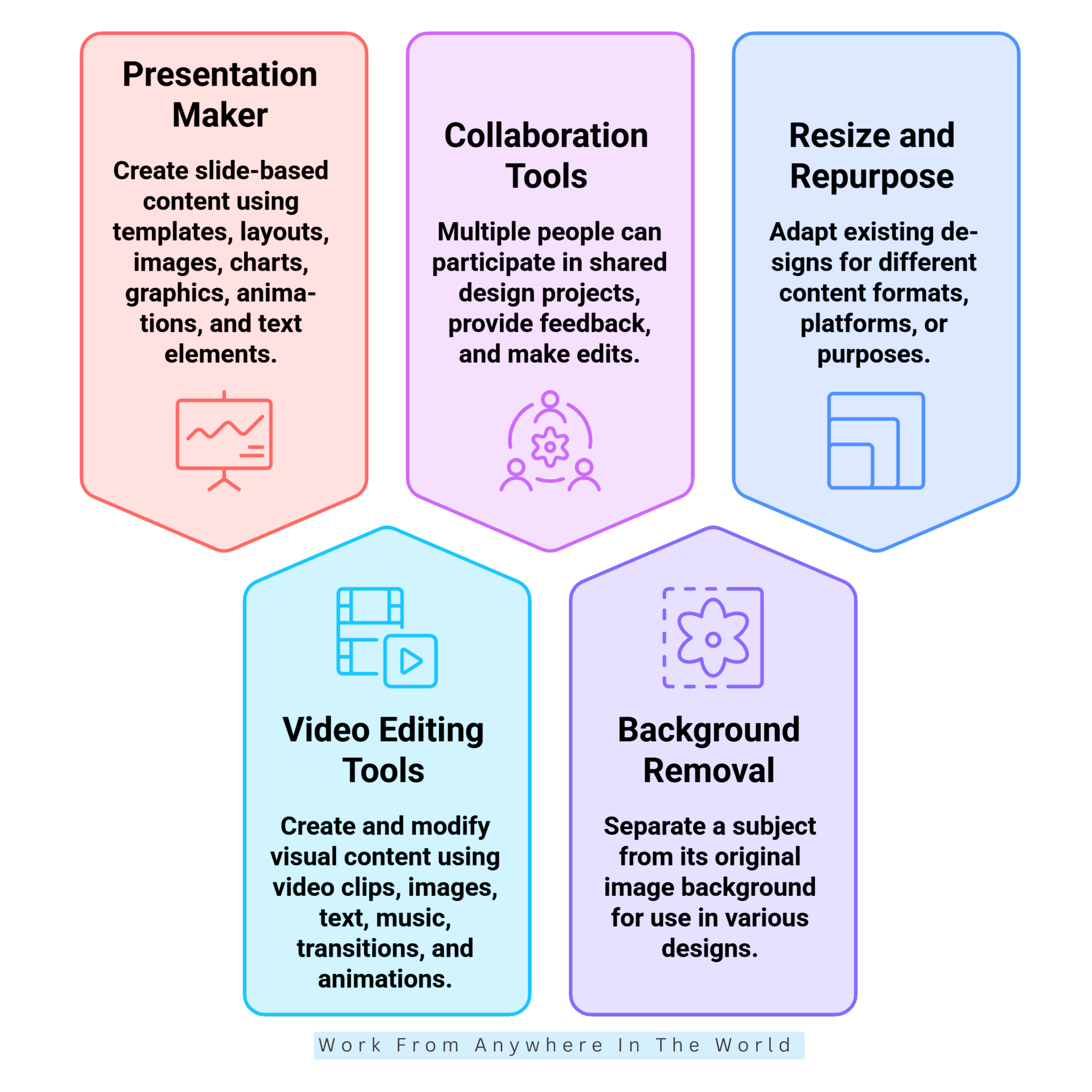
Canva’s Presentation Maker lets users create professional-looking slides with customizable templates. It supports text, photographs, charts, graphics, animations, and other visual elements.
Users can begin with a ready-made presentation template or create slides from scratch. Users can adjust layouts, colours, fonts, and images to suit different topics, audiences, and presentation styles.
The presentation maker works alongside Canva’s media library, Brand Kit, and collaboration features. Businesses can create branded presentations using consistent fonts, colours, logos, and visual elements across multiple slides.
Students and educators can organize information through diagrams, charts, photographs, and illustrated examples. These tools make Canva practical for classroom lessons, business meetings, training sessions, and creative presentations.
7. Video Editing Tools
Canva includes video editing tools that allow users to create, customize, and edit videos within the same platform. Its editor supports video clips, photographs, text overlays, music, transitions, animations, and other visual elements.
Users can begin with a ready-made video template or start with a blank project. They can upload their own footage, trim clips, arrange scenes, and combine them with Canva’s creative assets.
The editor also supports animated text, visual effects, and audio adjustments to make videos more engaging. These features help you create promotional videos, social media content, tutorials, and short-form videos.
Canva offers an accessible starting point for beginners exploring video editing software. Although it lacks some advanced editing capabilities found in professional applications, it provides practical tools for everyday creative projects.
Wealthy Affiliate – Mini Review
If you’ve ever thought about turning your blog, passion, or niche into an online business,
Wealthy Affiliate (WA) is one of the most beginner-friendly platforms I’ve used.
It combines step-by-step training, website hosting, AI-powered tools,
keyword research, and an active community all in one place.
What I like most is that you can start for free (no credit card needed), explore the platform,
test the tools, and connect with other entrepreneurs before upgrading.
WA isn’t a “get rich quick” scheme — success comes from consistent effort
and applying what you learn over time.
8. Collaboration Tools
Canva’s collaboration tools allow multiple people to work on shared design projects. Team members can access designs, contribute ideas, leave comments, and make edits together.
These features support teamwork on presentations, marketing materials, and social media graphics. Shared templates and Brand Kits also help teams maintain consistent branding.
For example, a marketing team can create promotional graphics while another member reviews the content. Comments and shared editing tools help coordinate revisions without repeatedly exchanging files.
Canva’s collaboration features benefit businesses, agencies, educators, and remote teams. They are especially useful for managing recurring creative projects.
Some advanced team management features depend on the subscription plan. Organizations should review the available options before choosing a workspace.
9. Background Removal
Canva’s background removal tool allows users to separate a subject from its original background. It is useful for product photographs, profile pictures, promotional graphics, thumbnails, and social media content.
Once the background is removed, users can place the subject against a different colour or image. They can also add it to an existing template or create a new design.
The feature works alongside Canva’s image editing tools, templates, frames, and drag-and-drop editor. This makes it easier to customize photographs without using advanced editing software.
For example, an online seller can remove a distracting background from a product photograph. They can then place the product against a clean background or incorporate it into a promotional graphic.
Background removal helps create polished visuals while keeping the editing process straightforward. Availability and usage limits may depend on the Canva subscription plan.
10. Resize And Repurpose Tools
Canva’s resize and repurpose tools help users adapt existing designs for different platforms. They can adjust layouts and dimensions without rebuilding every project from scratch.
These tools work alongside templates, Brand Kits, text features, and media elements. This helps users maintain consistent branding while creating content in different formats.
For example, users can adapt a social media graphic for another platform or promotional campaign. Users can adjust the layout, reposition images, and resize text to suit the new format.
These features support content repurposing strategies for marketers, bloggers, and content creators. They make it easier to share consistent messages across multiple channels.
Some resizing features depend on the Canva subscription plan. Users should check which tools are available before planning their workflow.
Pros Of Canva
Canva offers several advantages for beginners, content creators, and businesses. Its accessible design tools, customizable templates, and creative resources make everyday projects easier to manage.
The following benefits highlight why Canva is a popular choice for creating visual content. They also show how the platform supports different creative needs without requiring extensive design experience.
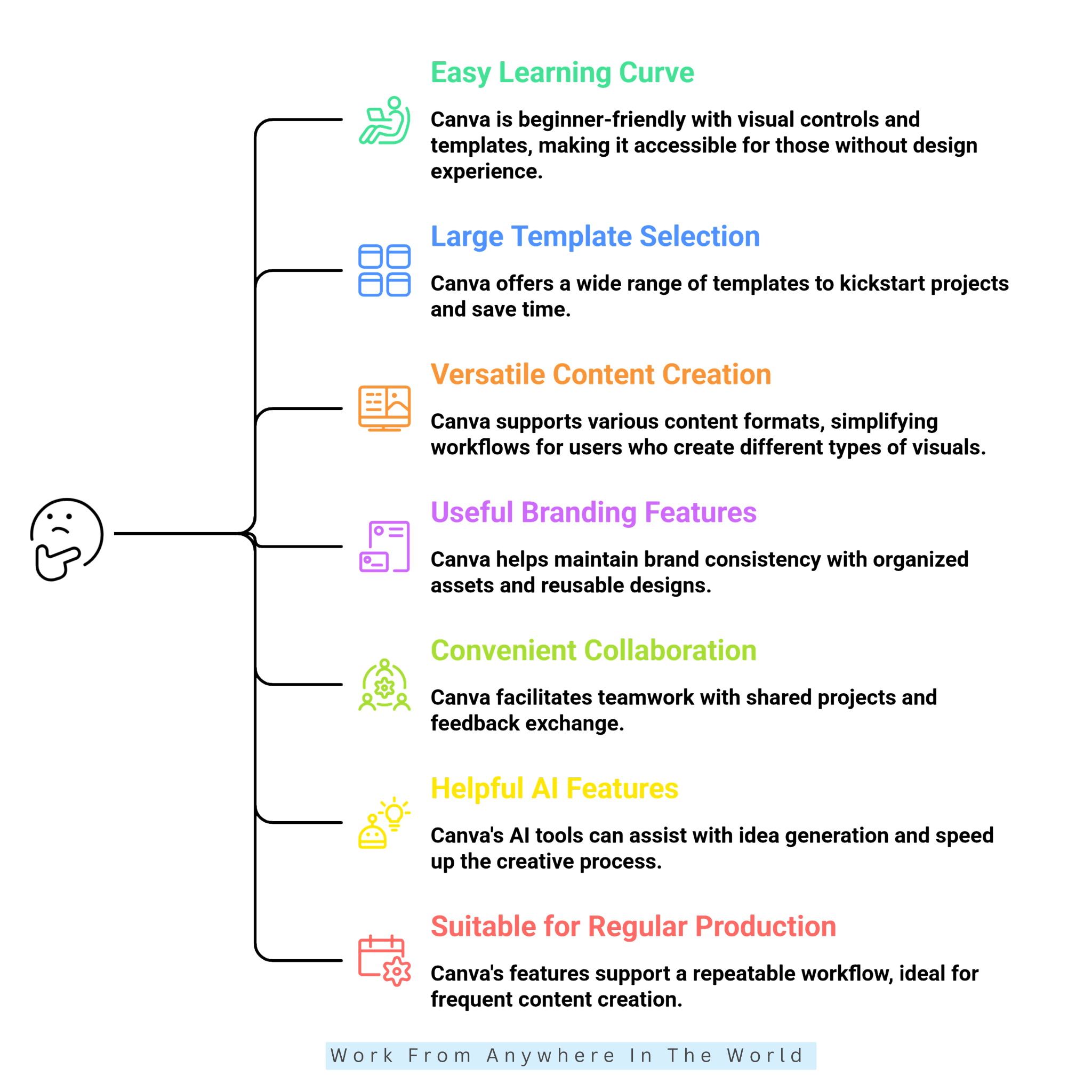
1. Easy Learning Curve
Canva offers a beginner-friendly learning experience through simple visual controls. Users can start with templates and gradually learn to customize layouts, fonts, images, and colours.
The drag-and-drop editor makes experimenting with different designs easier. Users can move elements, adjust their appearance, and explore creative options without advanced technical knowledge.
People without formal design training can create attractive visuals while developing basic design skills. This makes Canva accessible to students, small businesses, content creators, and professionals.
Canva also reduces the time needed to learn complex design software. Users can focus on creating useful materials while building their confidence and creativity.
2. Large Selection Of Templates
Canva provides an extensive collection of templates for different creative projects. These ready-made designs help users get started when they are unsure how to organize their ideas.
Users can customize the text, colours, photographs, fonts, and layouts to suit their needs. They can also adapt existing templates to create more personalized designs.
Templates are particularly useful for social media managers, marketers, educators, and small businesses. They provide a convenient foundation for presentations, promotional graphics, and other visual materials.
Using templates can reduce the time spent creating repetitive content. They also help maintain a consistent appearance across different projects without requiring advanced design skills.
3. Versatile Content Creation
Canva supports a wide range of creative projects within one platform. Users can create social media graphics, presentations, videos, posters, documents, invitations, and marketing materials.
This versatility makes it easier to manage projects that require different content formats. Users can switch between design tasks without learning several separate applications.
For example, a small business can create promotional graphics, presentations, and marketing documents in one workspace. This helps maintain a consistent visual style across different materials.
Canva is particularly useful for content creators, marketers, educators, and businesses with ongoing design needs. Its collection of creative tools supports an organized and consistent workflow.
4. Useful Branding Features
Canva’s branding tools help businesses maintain a consistent visual identity. Users can organize logos, brand colours, and fonts for easy access when creating new designs.
These features are particularly useful when several team members produce marketing content. Everyone can work with the same visual elements to maintain a recognizable brand appearance.
Branding tools also work alongside Canva’s templates and reusable designs. Businesses can apply their established colours, fonts, and logos to different projects.
This makes it easier to create consistent social media posts, presentations, advertisements, and promotional documents. It also simplifies brand management and supports a more organized design workflow.
5. Convenient Collaboration
Canva makes teamwork easier by allowing several people to work on shared design projects. Team members can exchange ideas, review content, and provide feedback in one workspace.
These tools are useful when designers, marketers, business owners, and content creators work together. Everyone can contribute to a project without repeatedly exchanging separate design files.
For example, a marketing team can develop campaign graphics while another member reviews the designs. Comments and shared editing tools help everyone coordinate changes and improvements.
Collaboration is particularly valuable for marketing campaigns, presentations, social media calendars, and branded content. It supports an organized workflow for teams managing ongoing creative projects.
Some collaboration features depend on the workspace and subscription plan. Businesses should review the available options to find tools that suit their needs.
6. Helpful AI Features
Canva’s AI-powered tools help users explore ideas and simplify creative tasks. They can assist with writing, image generation, editing, and developing design concepts.
These features are useful when users need inspiration or a starting point for a project. AI-generated suggestions can help turn initial ideas into visual content.
Users can refine the results with Canva’s regular editing tools. They can adjust text, colours, images, and layouts to match their creative goals.
This combination benefits beginners and experienced content creators. It provides additional creative support while allowing users to control their final designs.
Some AI features have usage limits or require specific subscription plans. Users should check which tools are included in their chosen plan.
7. Suitable For Regular Content Production
Canva is particularly useful for people who create visual content regularly. Its templates, reusable designs, brand assets, and editing tools support an organized workflow.
Users can develop designs that are easy to update for future projects. This reduces repetitive work while helping maintain a consistent visual appearance.
For example, a social media manager can create branded templates for upcoming campaigns. They can update the text, images, and graphics while keeping the original design style.
Small businesses can also reuse presentations, advertisements, and promotional materials. They can adjust existing designs whenever products, services, or marketing messages change.
This approach saves time and supports consistent content production. It also helps businesses maintain recognizable branding across different platforms and campaigns.
Cons Of Canva
Canva offers many useful design tools, but it also has limitations. Some features require paid plans, while others may not meet advanced designers’ needs.
Understanding these drawbacks helps users decide whether Canva suits their creative projects. The following disadvantages highlight areas worth considering before choosing the platform.
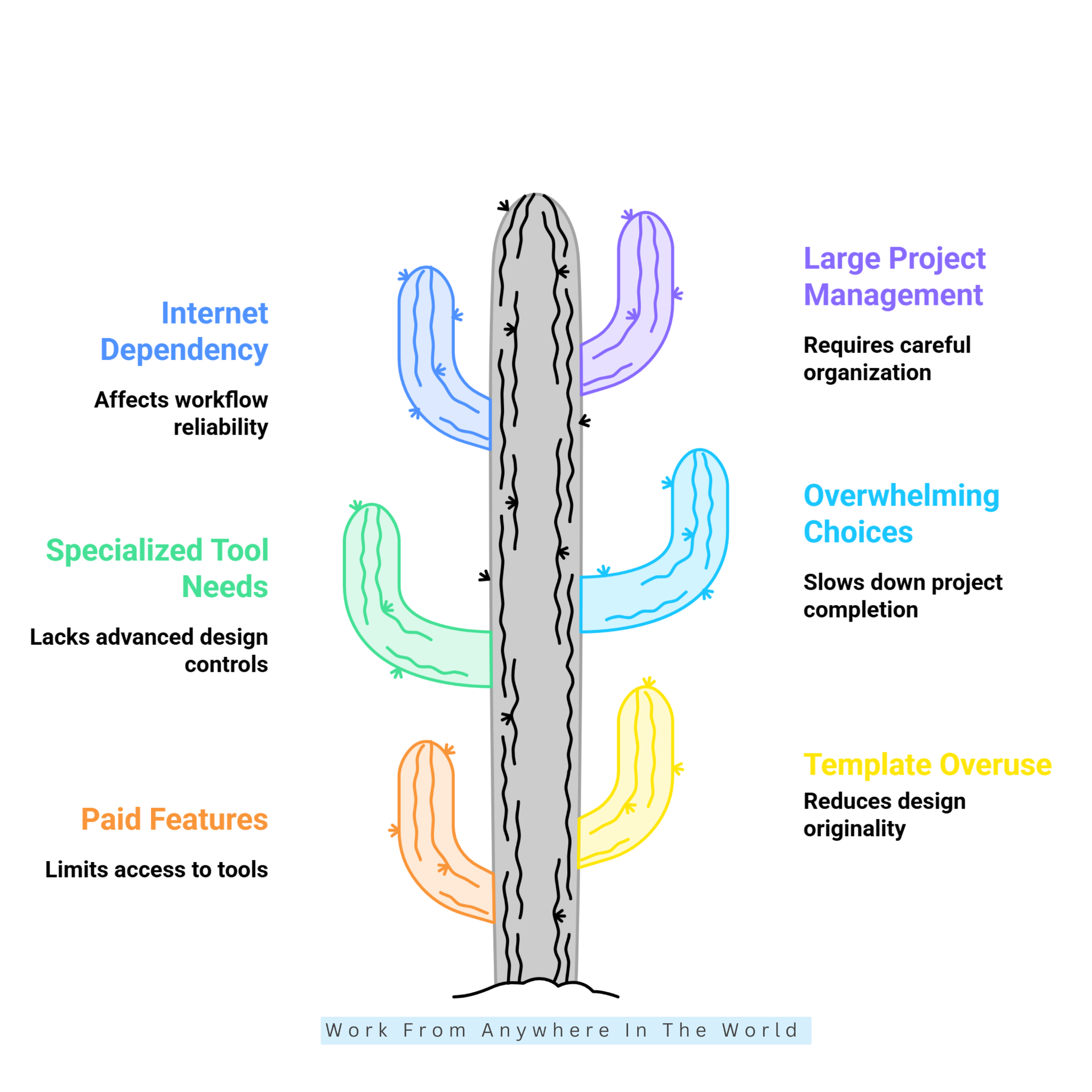
1. Some Features Require Paid Access
Canva offers a free version with useful design tools and creative resources. However, certain templates, media assets, and advanced features require a paid subscription.
Users may discover premium elements while working on their designs. Accessing these resources may require upgrading or choosing a suitable alternative.
For occasional users, Canva’s free tools may be sufficient for everyday projects. They can create social media graphics, presentations, and other visual materials without paying.
Businesses and content creators may benefit from additional premium features. These can provide greater flexibility when producing designs regularly or managing more complex projects.
Understanding the differences between Canva’s plans helps users make informed decisions. They can choose the features that match their creative needs and budget.
2. Templates Can Reduce Originality
Canva’s templates provide convenient starting points, but popular designs can look familiar. Using them with minimal changes may result in content that resembles other projects.
Businesses seeking a distinctive brand identity may need to customize their templates more extensively. Changing colours, fonts, images, layouts, and spacing can create a more recognizable appearance.
Canva provides plenty of flexibility for personalizing existing designs. However, the final result depends on how thoughtfully users adapt the original template.
Learning basic design principles can also improve the finished product. Users can create more original designs that reflect their brand, audience, and communication style.
3. Advanced Designers May Need Specialized Tools
Canva focuses on accessibility and convenience rather than advanced technical controls. Professional designers may need specialized software for projects with complex creative requirements.
Some design tasks require precise editing, detailed adjustments, or advanced production features. These capabilities may go beyond Canva’s standard design tools.
However, Canva remains useful for professional marketing and communication projects. Designers can create presentations, promotional graphics, and social media content without complicated workflows.
Professionals can also use Canva alongside specialized design applications. They can handle everyday creative tasks in Canva and use advanced software when greater technical control is necessary.
4. Too Many Choices Can Feel Overwhelming
Canva offers an extensive collection of templates, graphics, photographs, videos, and fonts. While this variety is helpful, the number of options can feel overwhelming to beginners.
Users may spend more time browsing designs than completing their projects. Exploring countless templates and creative elements can also make decision-making difficult.
Having a clear design goal can make the selection process easier. Users should consider their preferred style, target audience, message, and content format before starting.
Saving favourite templates and frequently used design elements can also simplify future projects. A small collection of preferred resources reduces unnecessary browsing and supports a more efficient workflow.
5. Internet Connection Can Affect Workflow
Canva is primarily an online design platform, so a reliable internet connection is important. Users need connectivity to access cloud-based projects, media resources, and many editing features.
Unreliable internet connections can interrupt the creative process. This may be especially frustrating when uploading large files or working on video projects.
People with dependable internet access may rarely encounter these difficulties. However, remote workers and travellers should consider their connectivity before relying on Canva for regular projects.
Planning ahead can help reduce unexpected interruptions. Users should consider their internet reliability, project requirements, and available offline options when organizing their design workflow.
6. Large Projects Require Organization
Canva supports many creative projects, but larger designs require careful organization. Projects with numerous slides, images, and design elements can become difficult to manage.
For example, a lengthy presentation may contain dozens of slides and visual elements. Without a clear structure, finding information and making changes can become challenging.
Using descriptive project names and organized folders helps keep materials accessible. Consistent layouts and reusable templates also make larger projects easier to manage.
Planning the structure before creating extensive content can prevent unnecessary revisions. This is particularly helpful when several team members contribute to the same project.
Good organization supports a smoother creative workflow and more consistent results. It also makes updating and reusing professional materials easier.
Canva Pricing & Plans Overview
Canva offers several plans for individuals, businesses, and larger organizations. Each provides different design tools, creative resources, and collaboration features.
Canva Free includes essential editing tools, templates, and creative assets. It is suitable for beginners and occasional users who need basic design capabilities.
Canva Pro provides access to additional premium templates, stock media, branding tools, and AI features. It is designed for individuals who regularly create visual content.
Canva Business offers additional collaboration, branding, and team management capabilities. It supports businesses that need to coordinate creative projects across multiple users.
Canva Enterprise provides solutions for larger organizations with more complex requirements. These may include advanced administration, security, and brand management features.
Plan availability, features, and subscription costs can vary by region. Readers can compare the options on Canva’s official pricing page before choosing a plan.
Frequently Asked Questions
Q1: Is Canva Free To Use?
Yes. Canva offers a free plan with design tools, templates, and creative resources. Users can create social media graphics, presentations, and other visual content without paying.
However, some premium templates, stock media, and advanced features require a subscription. The free version suits beginners and occasional design projects.
Q2: Can Canva Create Videos?
Yes. Canva includes video creation and editing tools for different content types. Users can combine video clips, photographs, text, music, transitions, and animations.
The editor supports promotional videos, tutorials, and social media content. Users can start with templates or create their own designs using uploaded footage.
Q3: Does Canva Have AI Tools?
Yes. Canva provides AI-powered tools for writing, image generation, editing, and design ideas. These features can help users develop creative concepts and customize visual content.
Users can refine AI-generated results with Canva’s regular editing tools. Some AI capabilities have usage limits or require specific subscription plans.
Q4: Is Canva Better Than Professional Design Software?
Canva is a practical choice for beginners and everyday creative projects. Its templates and visual editing tools make designing accessible without extensive technical knowledge.
Professional design software may offer greater control for complex projects. The better choice depends on the user’s experience, creative requirements, and preferred workflow.
Q5: Can Canva Be Used For Commercial Projects?
Yes. Canva supports commercial projects such as advertisements, presentations, promotional graphics, and marketing materials. Businesses can use its design tools to create professional-looking content.
However, commercial usage rights depend on the assets and how you use them. Users should review Canva’s licensing terms before publishing or selling designs.
Q6: Is Canva Suitable For Small Businesses?
Yes. Canva helps small businesses create social media graphics, presentations, advertisements, and promotional materials. Its templates make branded content easier to produce.
Businesses can also use branding and collaboration features to keep designs consistent. These tools can support broader small business success strategies while simplifying everyday marketing tasks.
Conclusion
This Canva Review highlights the platform’s accessible design tools, customizable templates, AI features, and branding capabilities. Its media resources and collaboration tools also support a wide range of creative projects.
Canva makes visual content creation more approachable for beginners, students, marketers, and business owners. Users can create presentations, videos, social media graphics, and promotional materials within one workspace.
However, some advanced features require paid plans, and specialized design projects may need additional software. The right tools depend on individual skills, creative goals, and project requirements.
Overall, Canva offers a practical solution for everyday design tasks and regular content production. Its combination of convenience, flexibility, and creative resources makes it worth considering for personal and professional projects.
I trust you enjoyed this article on the [Blog Post Title]. Please stay tuned for more insightful blogs on affiliate marketing, online business, and working from anywhere in the world.
Take care!
— JeannetteZ 🌍✨
💬 Your Opinion Is Important To Me
Do you have thoughts, ideas, or questions? I’d love to hear from you. Please leave your comments below or email me directly at Jeannette@WorkFromAnywhereInTheWorld.com.
📚 More Work From Anywhere Reads
🚀 Ready to Build a Business You Can Run from Home
Or from Anywhere in the World?
Imagine creating income on your terms — from home, a cozy café, or wherever life takes you.
With the right tools, training, and community support, it’s entirely possible.
Start your own online business for free — no credit card needed.
Disclosure
This post may contain affiliate links. As an Amazon Associate and participant in other affiliate programs, I earn from qualifying purchases at no extra cost to you. Please read my full affiliate disclosure.
Hi, thanks for such a great introduction to Canva. I’ve heard of this and been told it can help me with my business but I never fully understood the potential. I know I need to get this app and start playing around! Do you know if the app has a tutorial? I’m not the most tech savvy but really want to master this tool.
Thanks again for such a great article. You have finally pushed me over the edge to give Canva a try!
Hi Jamie,
There are lots of tutorials and YouTube how-to videos about Canva. Even Canva itself offers a design school and many videos. I am not tech-savvy either but started learning how to use this app. It is amazing what you can do with it. From designing logos to Pinterest pins, to birthday cards, everything is there. What I love about it is that there are lots of free photos on Canva which you can use for your websites.
It is definitely a must-do if you have your own website. I am now finishing level 5 of the OEC training and then I will move to the Canva tutorials “full-time”. I know you will enjoy it.
Jeannette
Hi Jeannette,
I am also a Canva user with the free version, but, amazingly, you can design any images for my blog post, banners, or Pinterest pins.
I agree with you about the second disadvantage. Sometimes, the templates I am designing come with paid images. If I like to download the images, I would have to pay for each paid image in the design, which caused me to remove all the paid images in the end. This is probably the biggest downside for the free version.
Anyway, I will love to upgrade to a premium version once I need more advanced or powerful features in the future. So, thanks a lot for sharing today!
Matt
Hi Matt,
Thanks so much for your comment. I think you had a great idea removing the paid images. I believe you can just use a filter so they don’t show up. What you could also do is sign up for the 30-day free trial, create your templates with the pictures you would like and then cancel the trial again. I saw that trick on one of the YouTube videos.
Take care,
Jeannette
I started with Canva a few months ago. At first, it took me a while to get used to it, but it is really a great tool, and now I always use it to create pins for Pinterest. You can make some great designs for any other social media there too. In online classes (I’m a teacher) some of my students also like to use Canva for projects, such as making flyers about certain topics we are studying. I love Canva, and now that I got the hang of it, I know that it’s a very userfriendly tool. It may not be enough to create book cover designs (I am also an author 😉 ), although some writers use it for that, but for a book cover design I prefer to hire a professional designer. Everything else, I use Canva.
It’s good to know about the phone app. In that way I can create a design on my laptop and then share it on social media via the phone app?
Hi Christine,
Thanks for your input. I am not that knowledgeable of Canva yet. However, I watched quite a few YouTube videos. One lady is teaching the basics of using Canva in 1 hour 39 minutes.
I love what I know so far and I am looking forward to learning how to design my own logo, banners, social media items and using the photos for my website.
Take care
Jeannette
Hi Jeannette, very informative write up on Canva. I tried it out for a bit to help with pins on Pinterest, but couldn’t get the hang of it, I simply couldn’t load it up once I got a look I wanted. I might need to do more you tube viewing to get more saavy with it.
It was pointed out that moving pins do much better for viewing and Canva can do this for you, that’s why I got the app, I just need to master it a bit more. Also as Matt pointed out, I too wanted to use graphics or images that you had to pay for and it was off putting, but I got the jist of it in the end and changed my mind, that’s why I kind of gave up.
It does have loads of potential like you have pointed out, but as a graphic designer, sometimes I find it restrains me in some of the designs I want. I found the templates a bit awkward to work with, but I shouldn’t let that phase me and now having read your review may go back to it.
Glad I came across your post. Thanks for explaining all the features didn’t know what else Canva offers. Now I do 🙂
Hi Juia,
It is great to hear that you enjoyed my Canva review. I started playing around with it and watched all the tutorials in the app itself. They also offer a design school for free. You won’t need that since you are a graphics designer already.
I plan to do all my logos, banners, pins, and other social media items on Canva. The paid version has thousands of images we can use on our website as well.
Juia, I want to become a master user of Canva and then help other people with designs. I love doing creative tasks like that.
Have fun with Canva
Jeannette